Maintenance
How to Properly Clean your PC or Laptop
By Tasos Bibis
August 18, 2025
Part 1: The Physical Clean (Hardware)
Dust, dirt, and pet hair are the silent killers of computing performance. They clog fans, insulate components, and cause overheating, which leads to throttling and slowdowns.
Step 1: External Dusting and Vents
What you need: Compressed air, microfibre cloth, isopropyl alcohol (91% or higher).
Power Down and Disconnect: Turn off your PC or laptop completely, unplug the power cord, and disconnect all peripherals (USB drives, monitors, etc.). This is a crucial safety step.
Clear the Vents: Using the compressed air canister, spray the air vents in short, controlled bursts. For laptops, pay special attention to the side and bottom vents. For desktops, focus on the front, back, and top chassis vents. Do not turn the can upside down, as it can spray liquid propellant.
Wipe the Surfaces: Lightly dampen a microfibre cloth with the isopropyl alcohol and gently wipe down the exterior casing. Avoid getting liquid near ports or openings.
Step 2: Interior Deep Clean (Desktop PC Only)
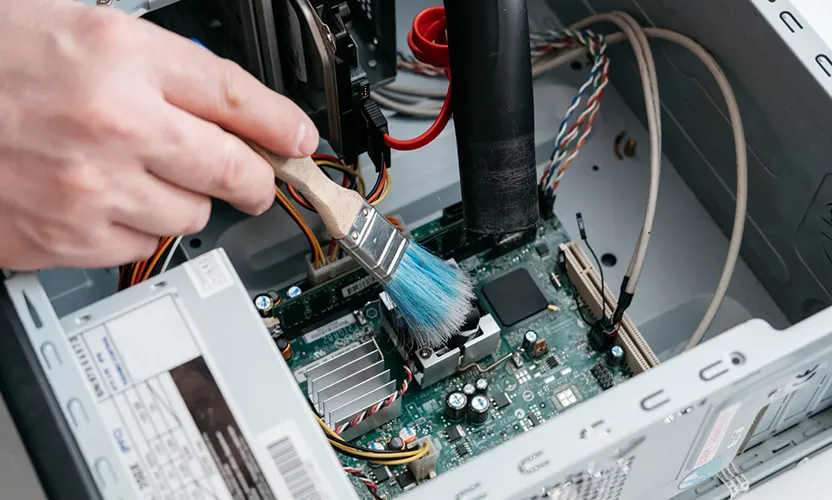
If you have a desktop tower, you can open the side panel for a truly deep clean.
Ground Yourself: Before touching any internal parts, touch a grounded metal object (like the PC case) to discharge any static electricity.
Clean the Fans: Use the compressed air to clear the dust from the CPU cooler, GPU fan, and case fans. You can use a cotton swab lightly dipped in alcohol to clean the fan blades. Crucially, hold the fan blades steady with your finger while you spray them to prevent them from spinning backward, which can damage the bearings.
Clear the Components: Gently spray the compressed air over the motherboard, RAM sticks, and graphics card to clear any accumulated dust bunnies.